PF 360 Capture New Updates – October 2025
New Updates:
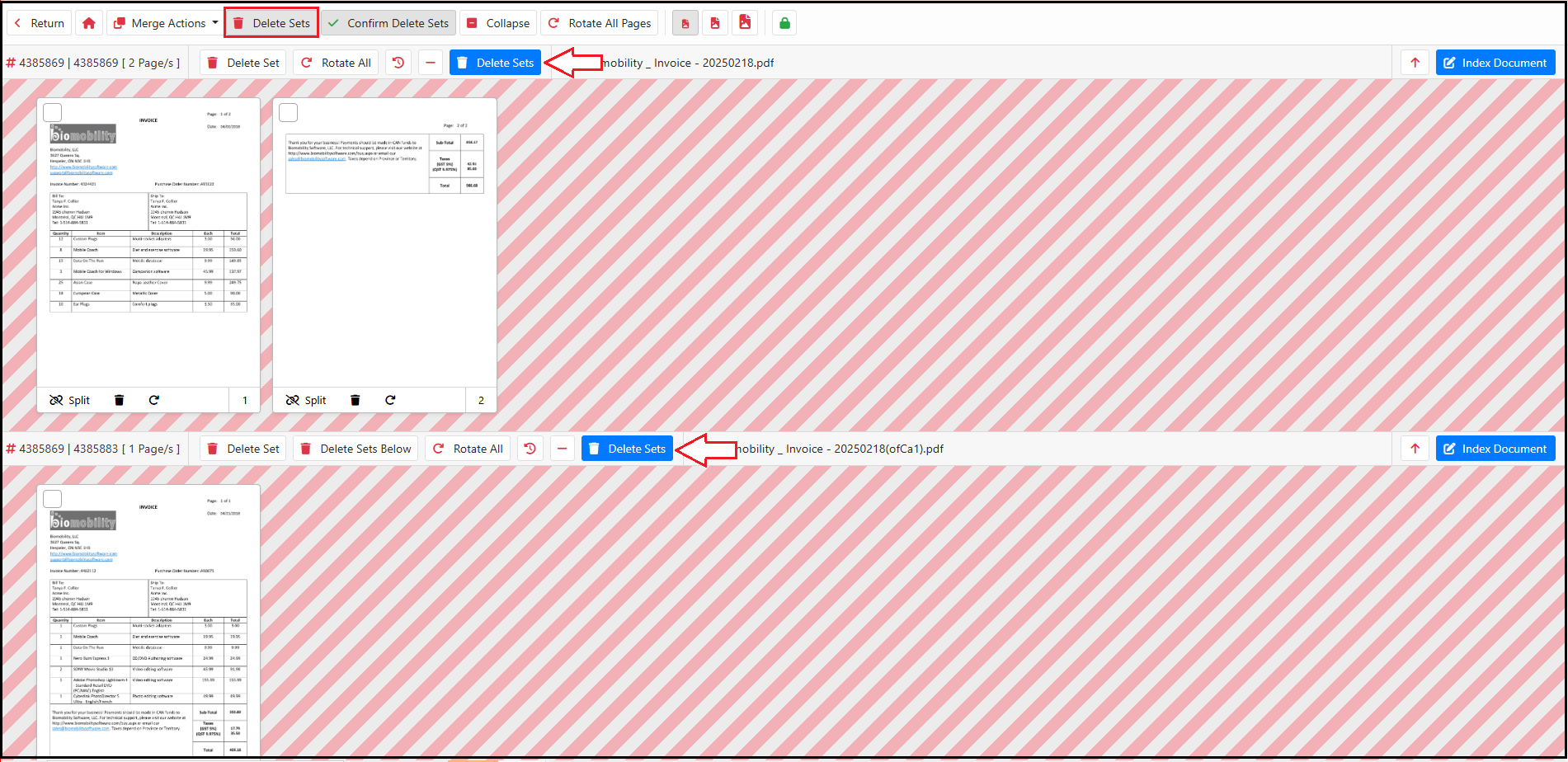
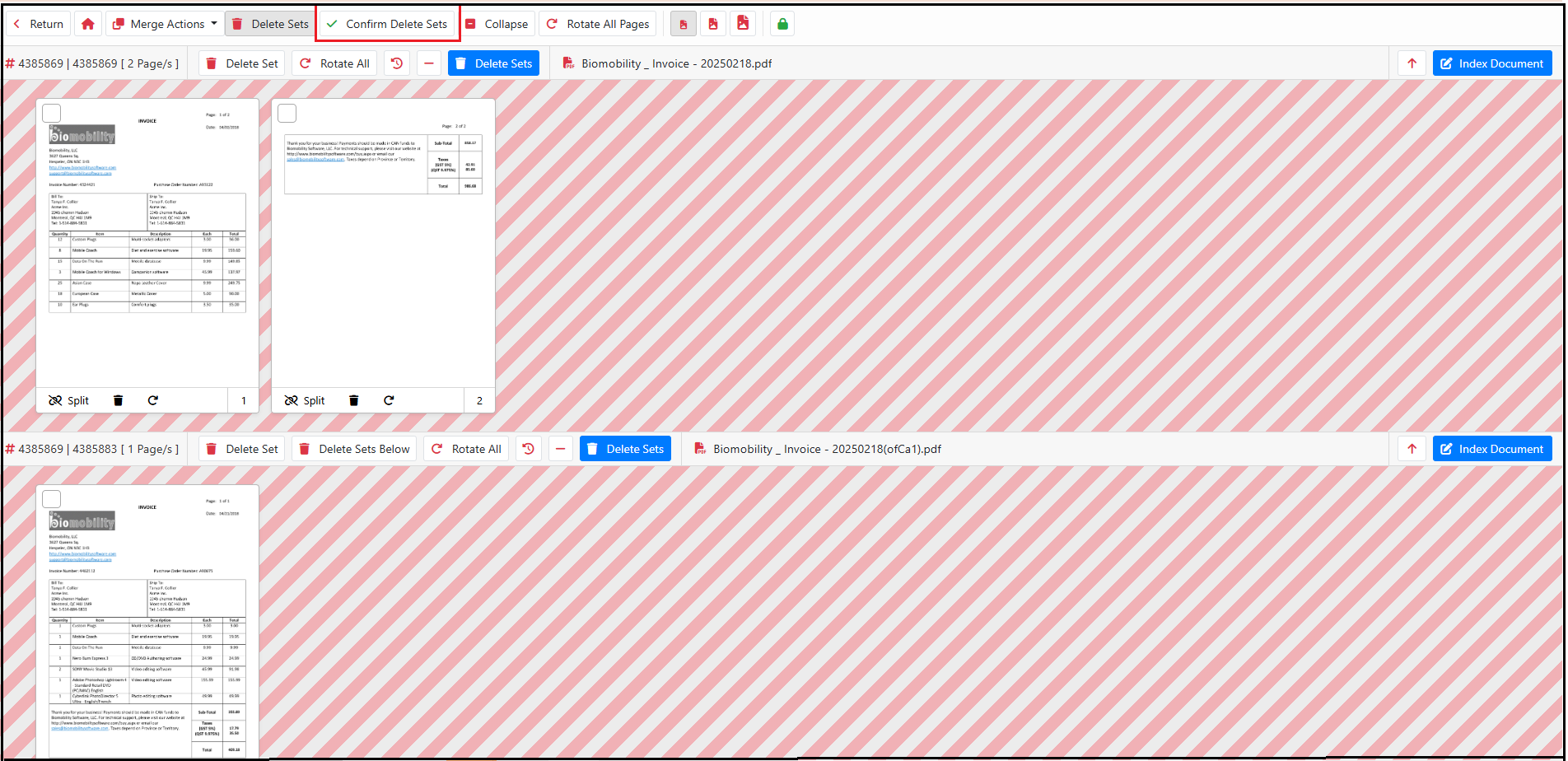
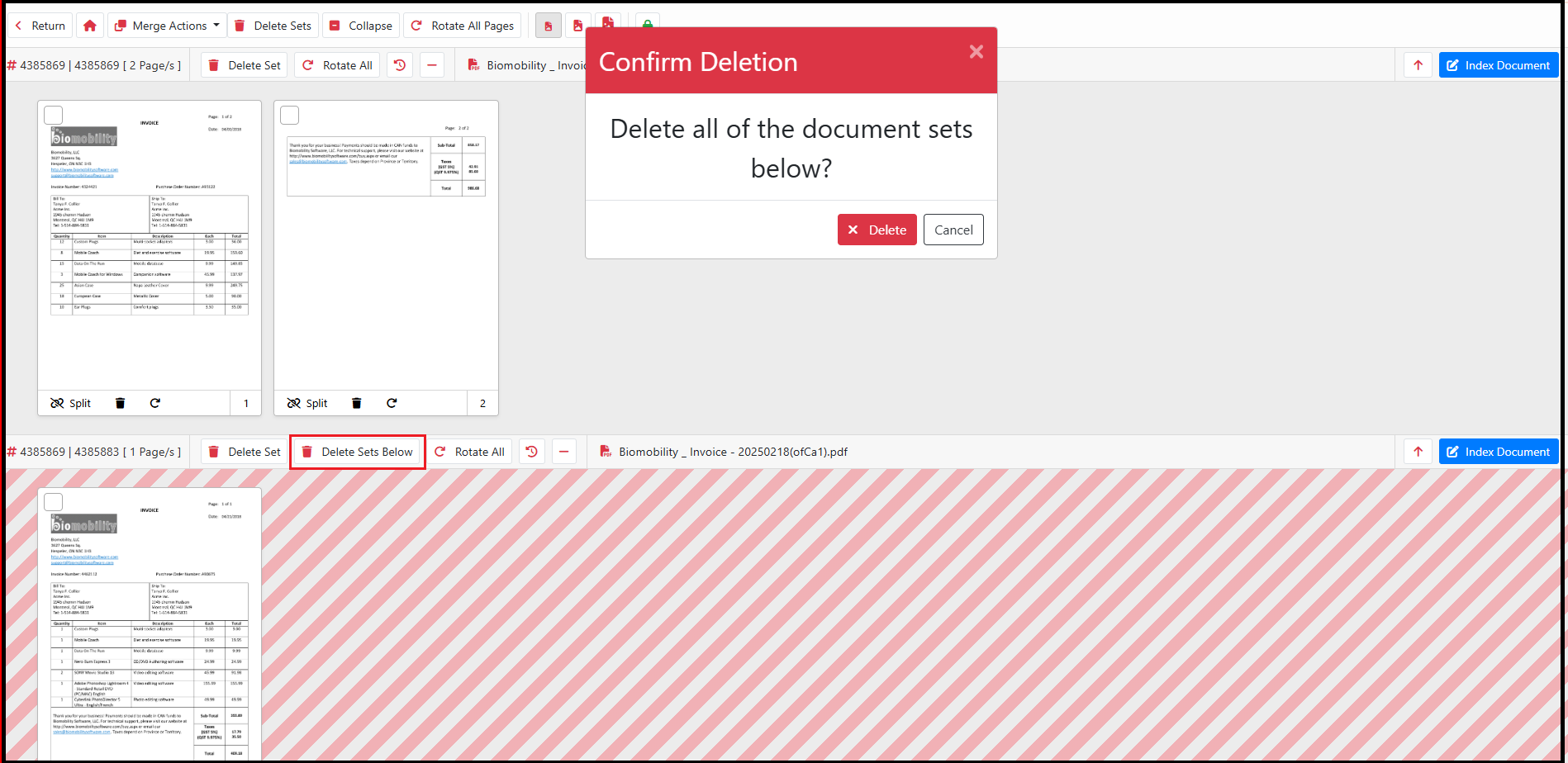
1233: Added ability for users to delete consecutive documents with Delete Set Below Option and non-consecutive documents with Delete Sets Option in the Document Preparation screen.
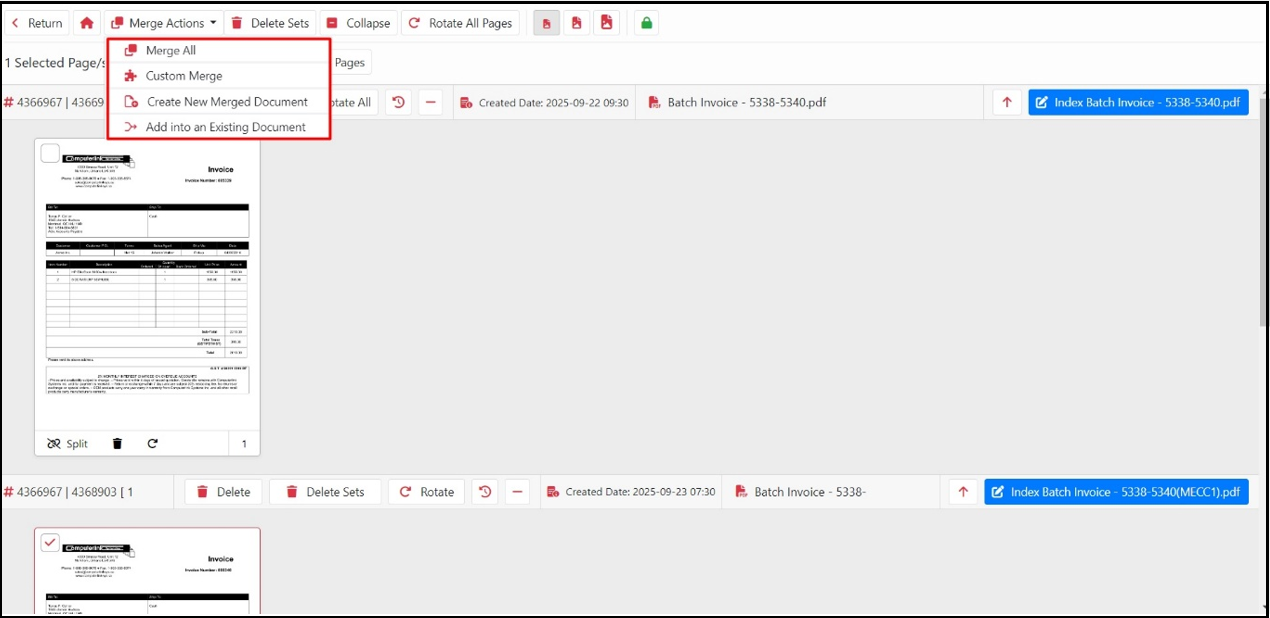
1166: All merge options in the Document Preparation screen are now organized in a dropdown, eliminating user confusion.
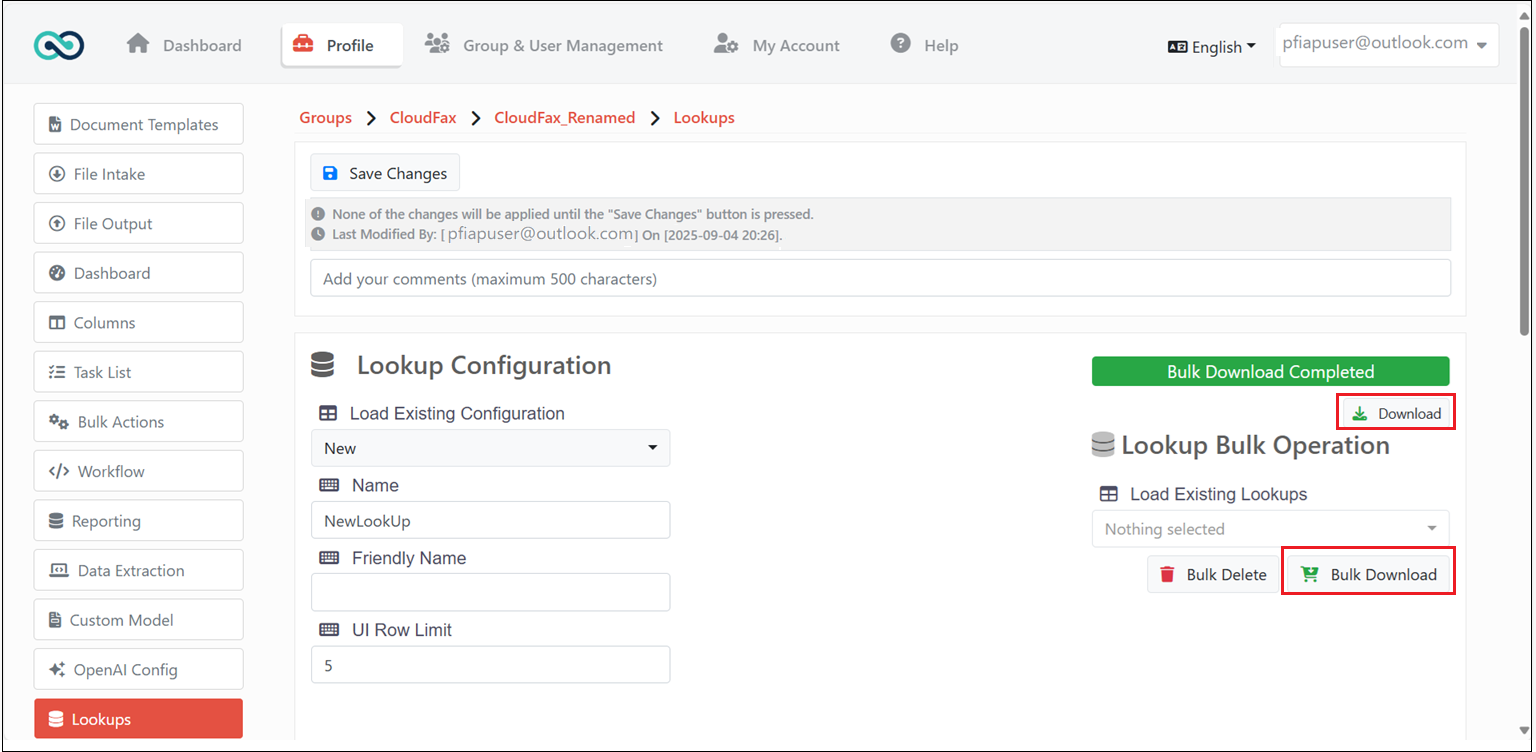
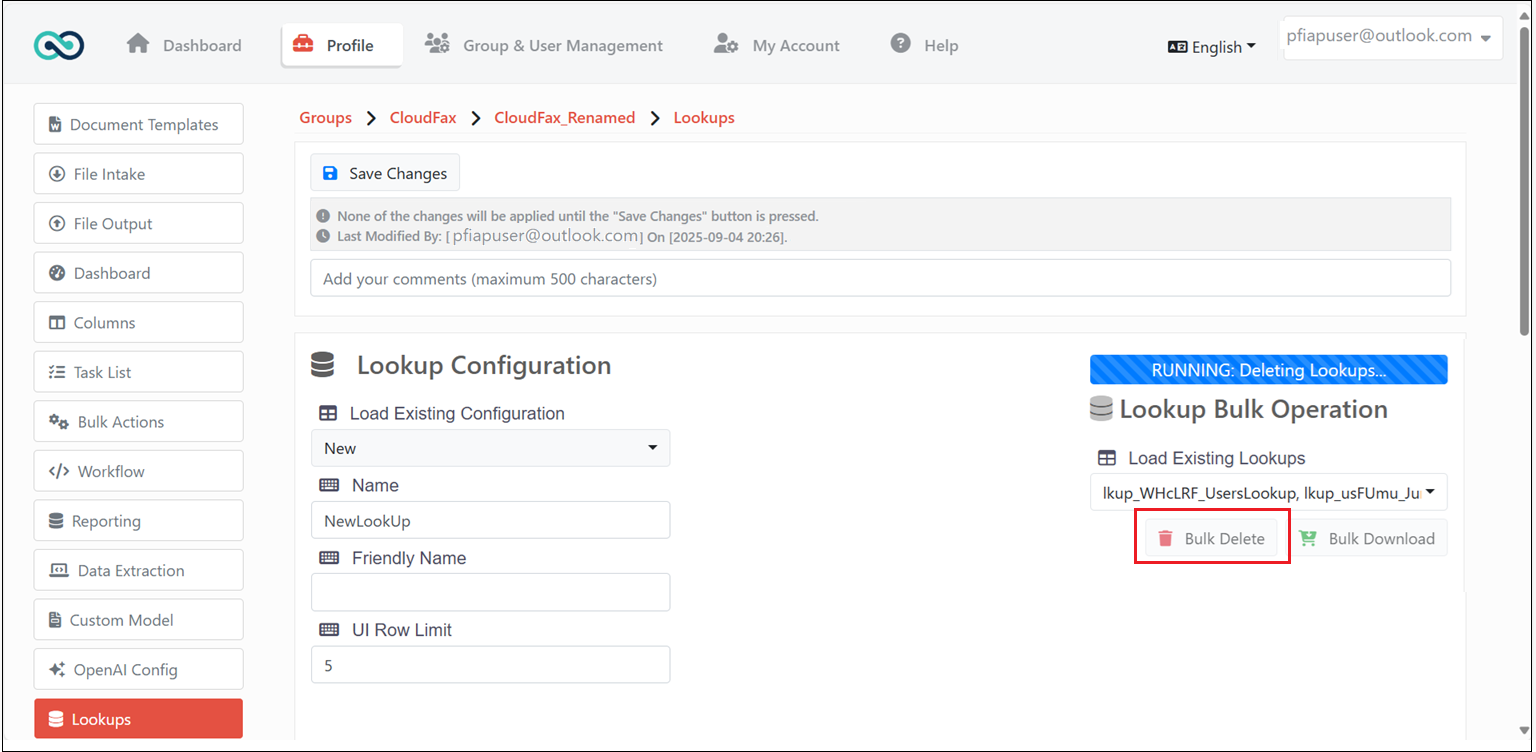
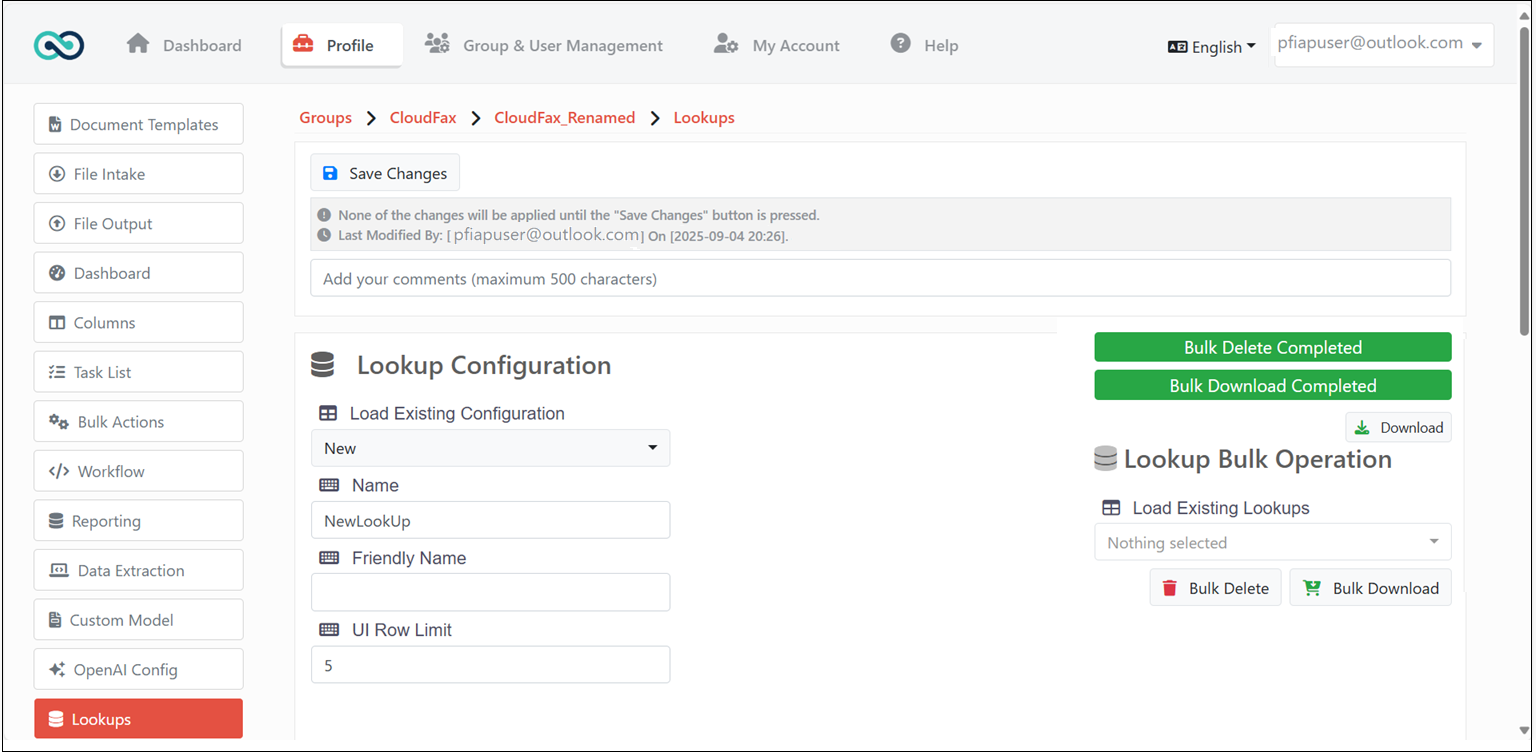
2737: Added support for bulk deletion and download of multiple lookups from lookup list. Under Lookups, choose multiple lookups from Load Existing Lookups.
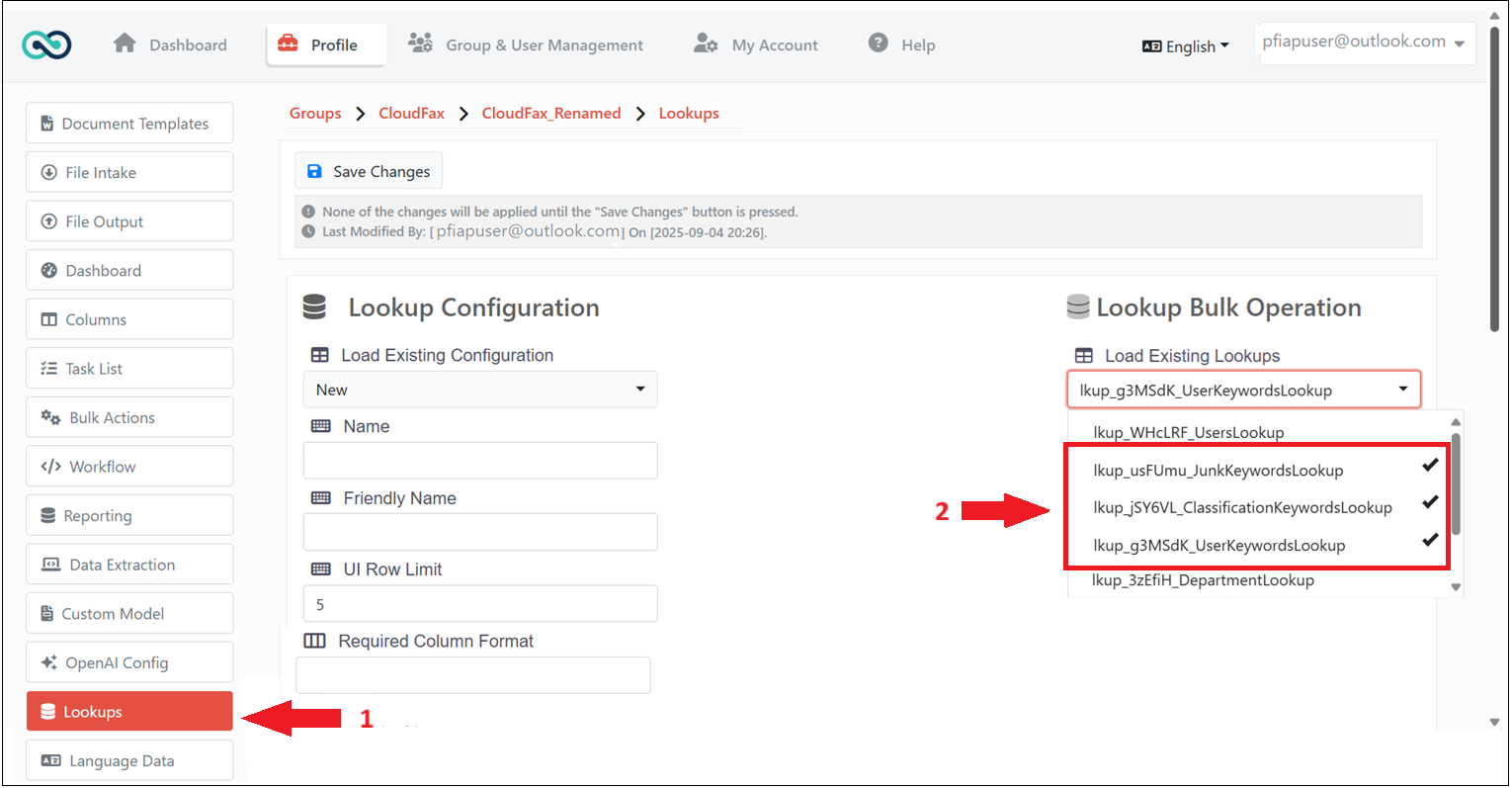
Click Bulk Download. The selected lookups will be processed for bulk download and can be downloaded by clicking Download.
Choose multiple existing lookups and click Bulk Delete. The selected lookups will be deleted in bulk.
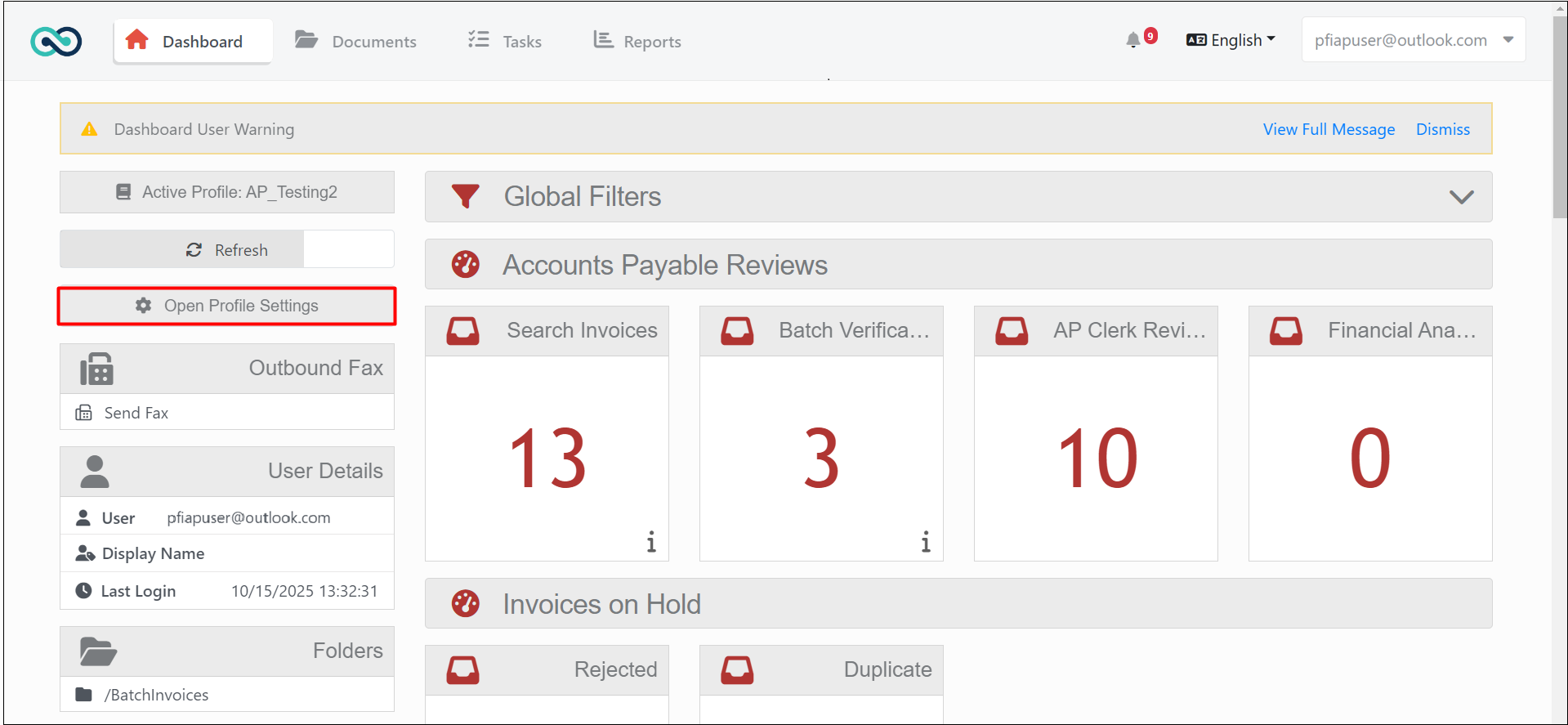
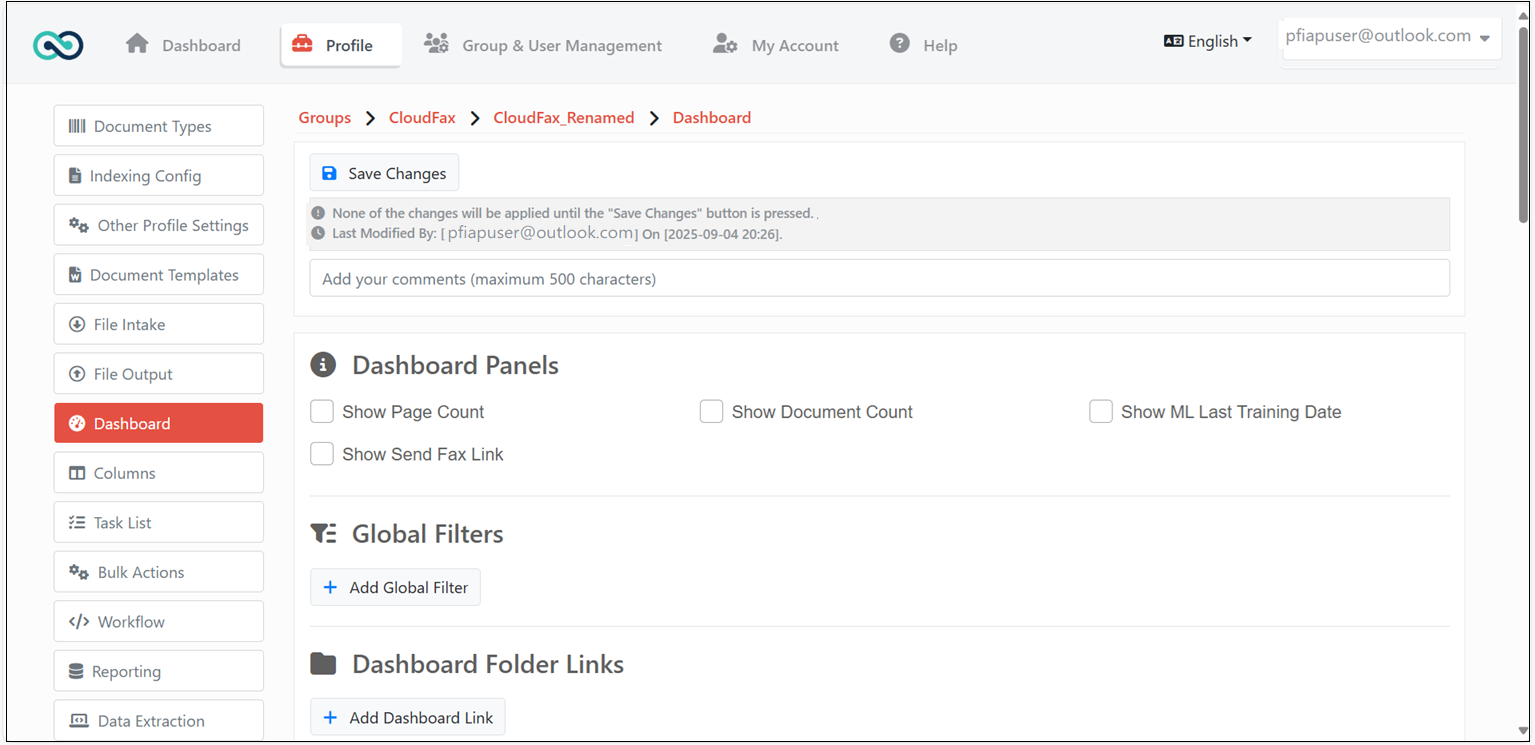
1981: Added an option for administrators to navigate directly to the Profile Configuration page from the Dashboard using the Open Profile Settings button.
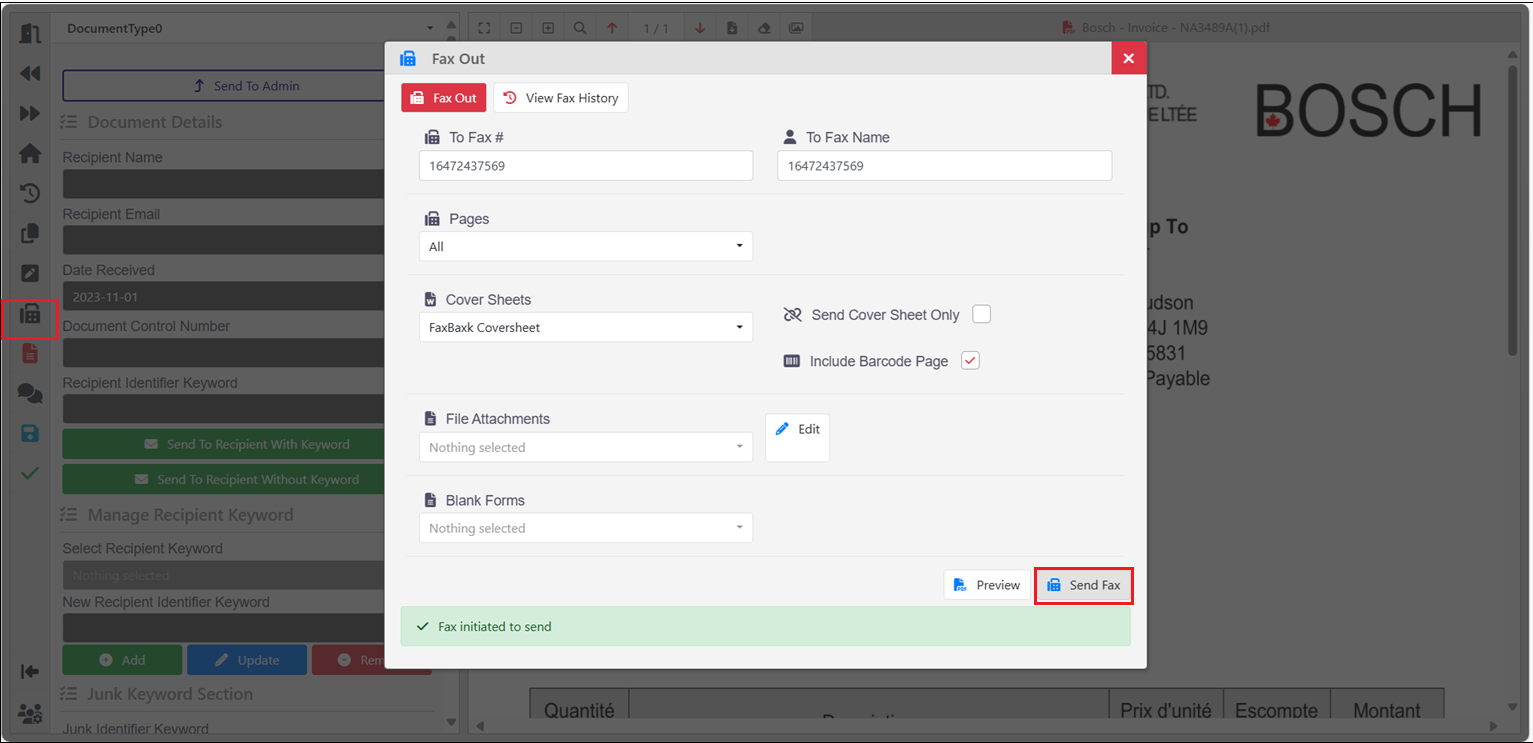
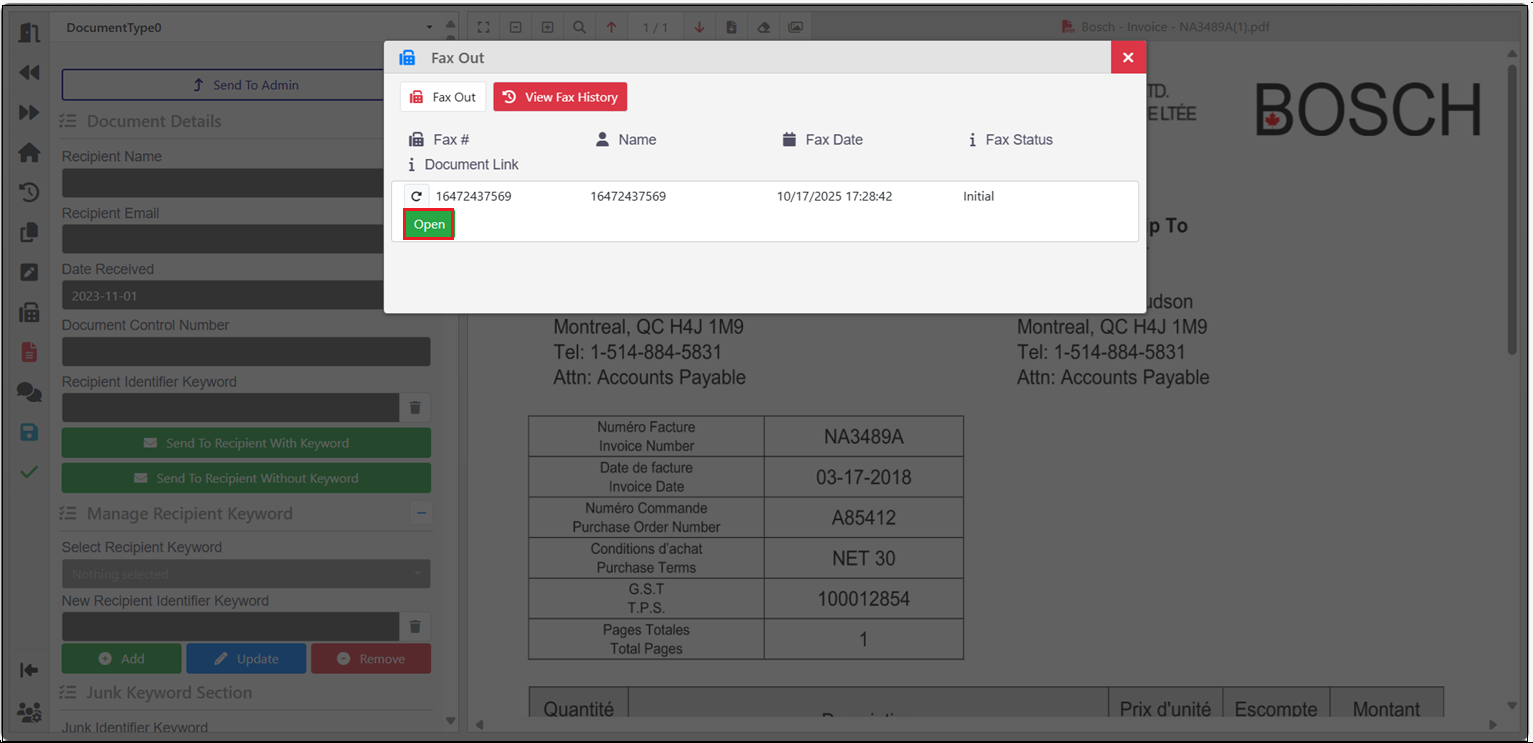
2542: The ability to open previously faxed documents directly from the Fax History in the Fax Out screen has been added.
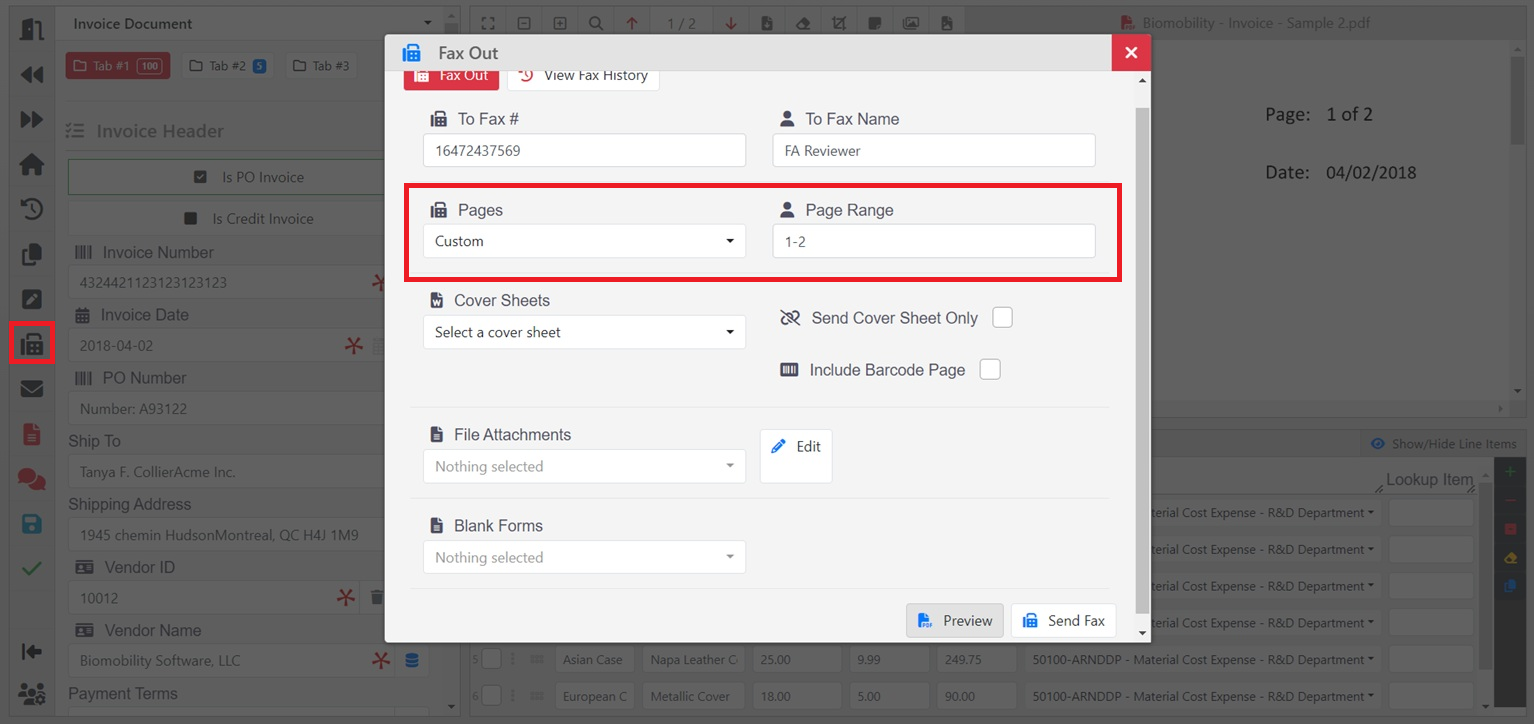
2394: Ability to select a page range for multi-page documents in the Fax Out screen has been added.
3226: An option to highlight text in the document has been added. To use it, open Profile Settings and enable Show Text Highlight under Buttons/Menu Settings. Click the Highlight tool, select the Toggle Highlight Text View option, and highlight the required text.
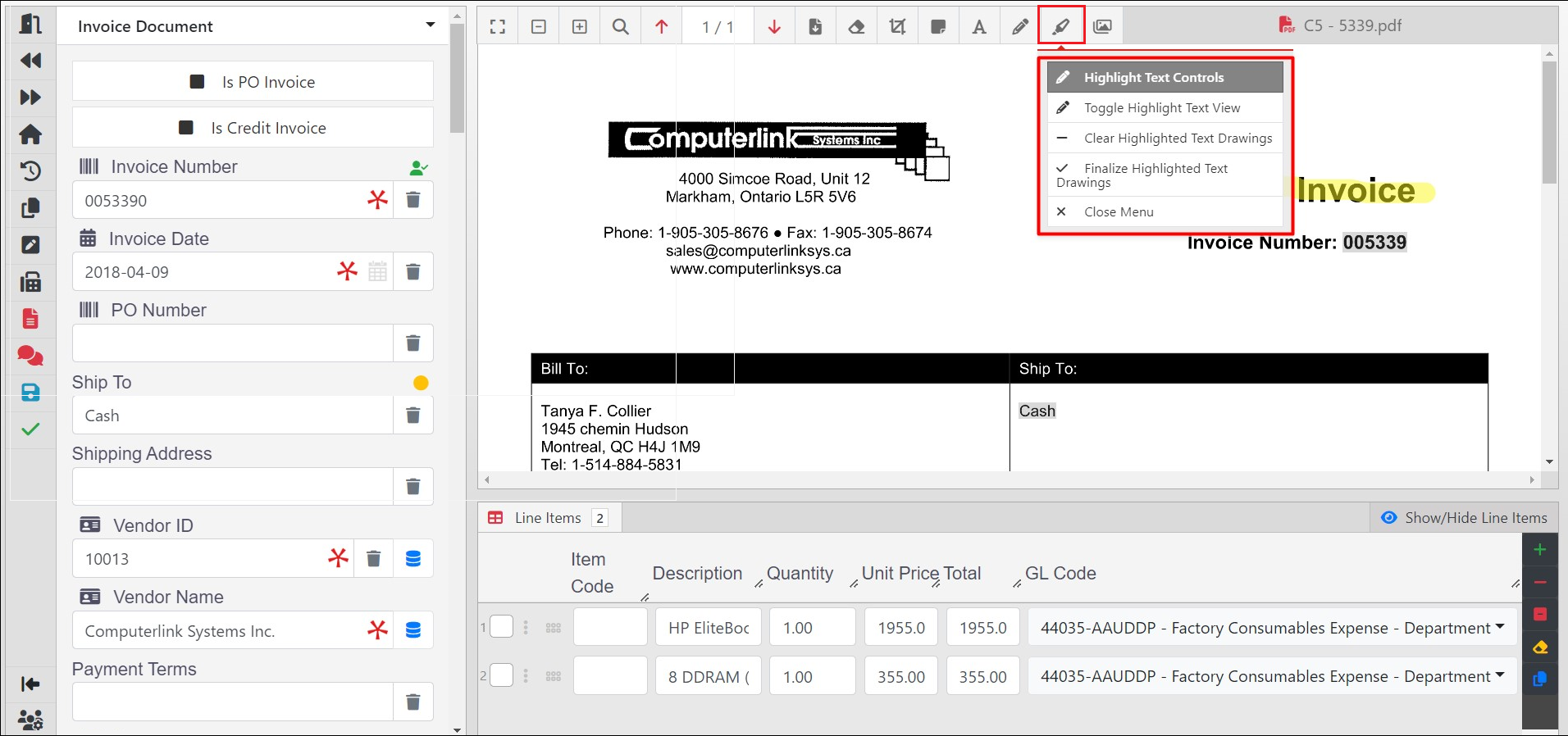
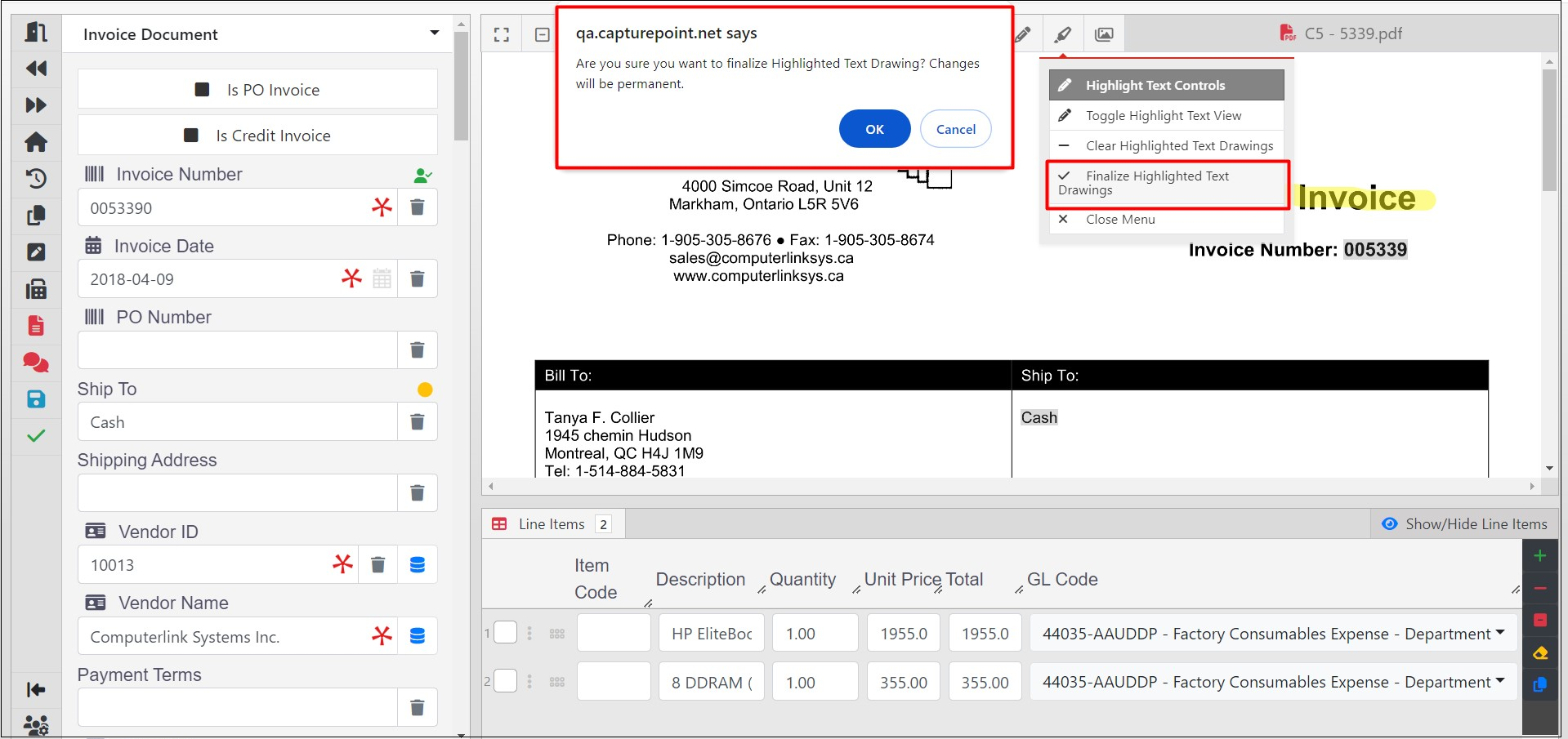
Click Finalize Highlighted Text Drawings and then click OK.
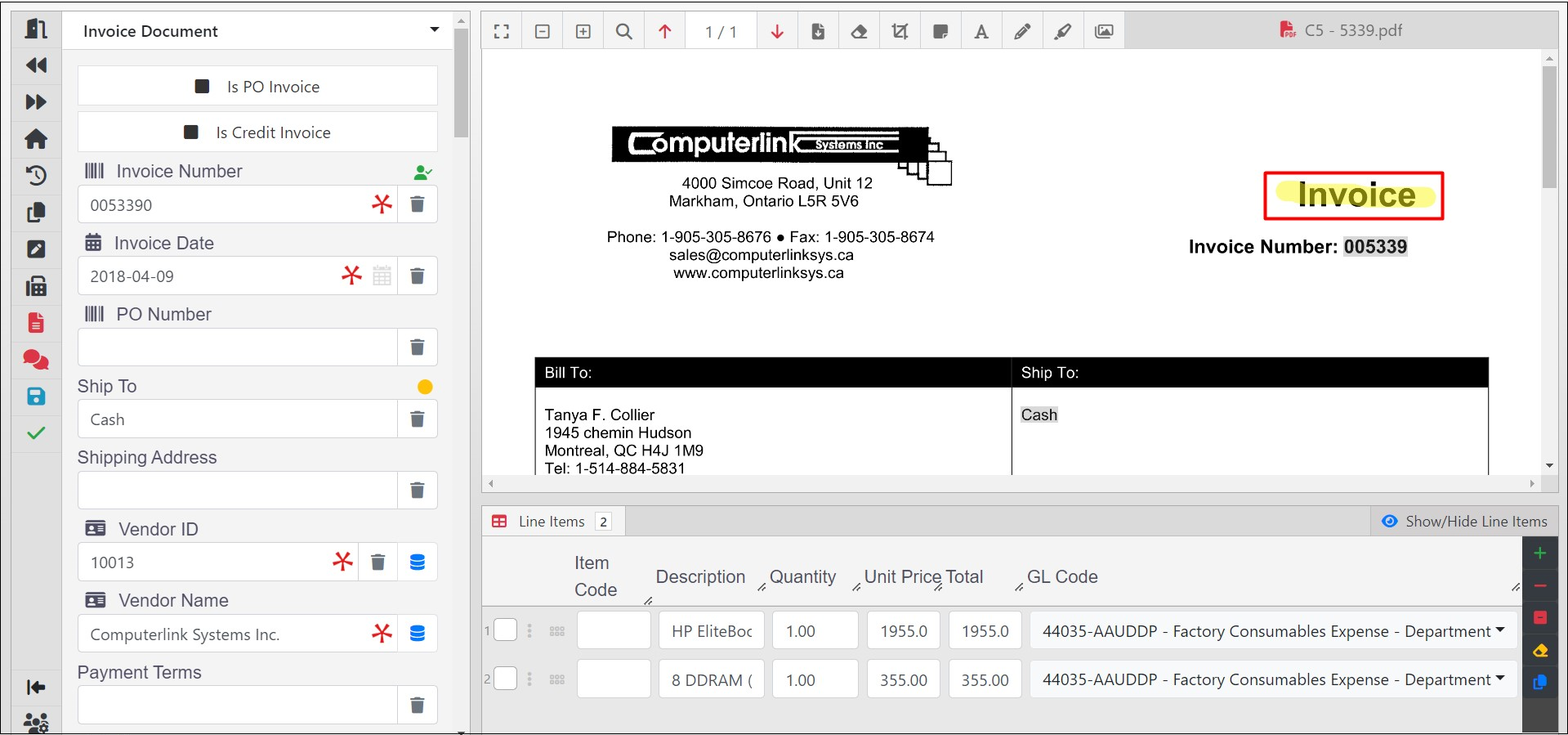
The finalized highlights will be saved and visible in the document.
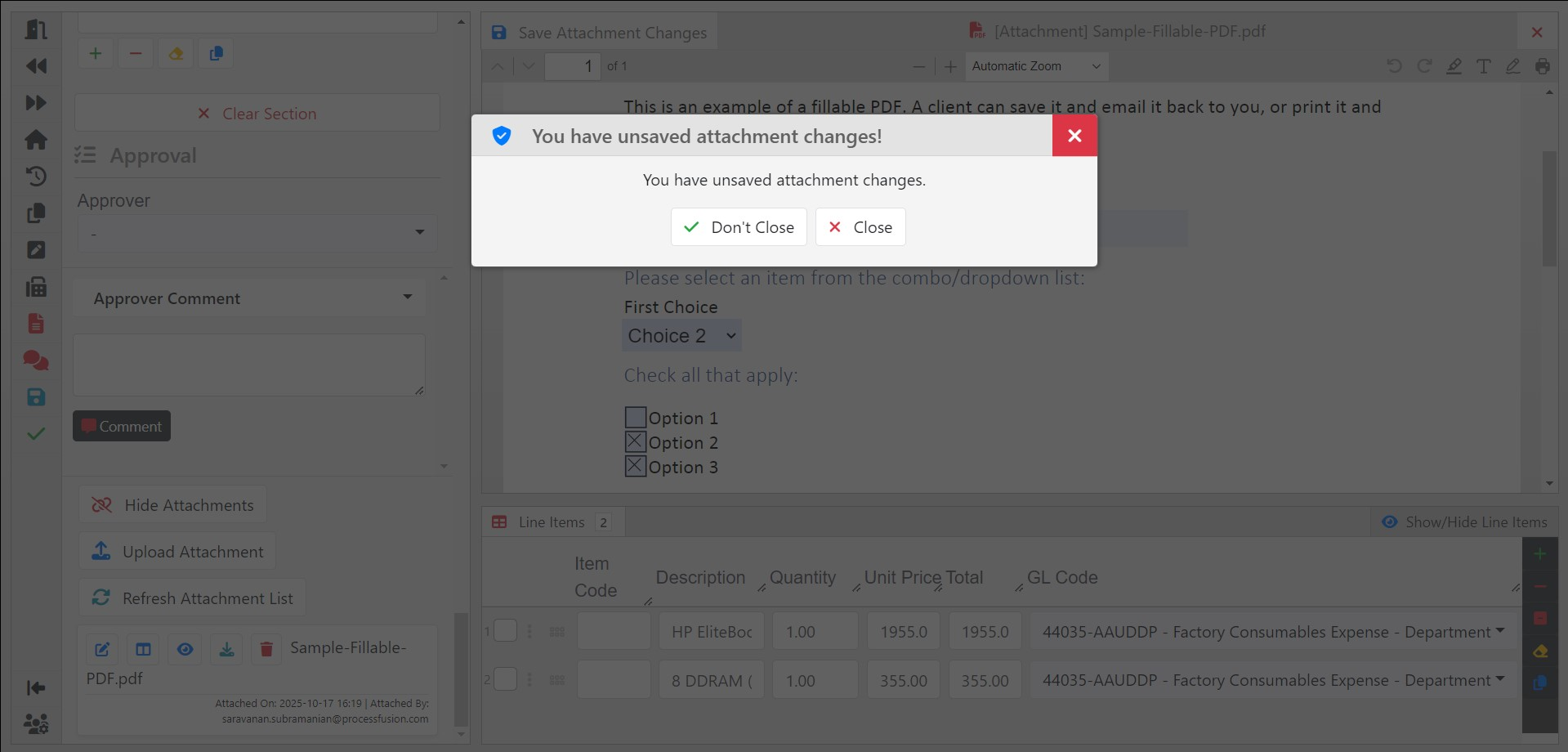
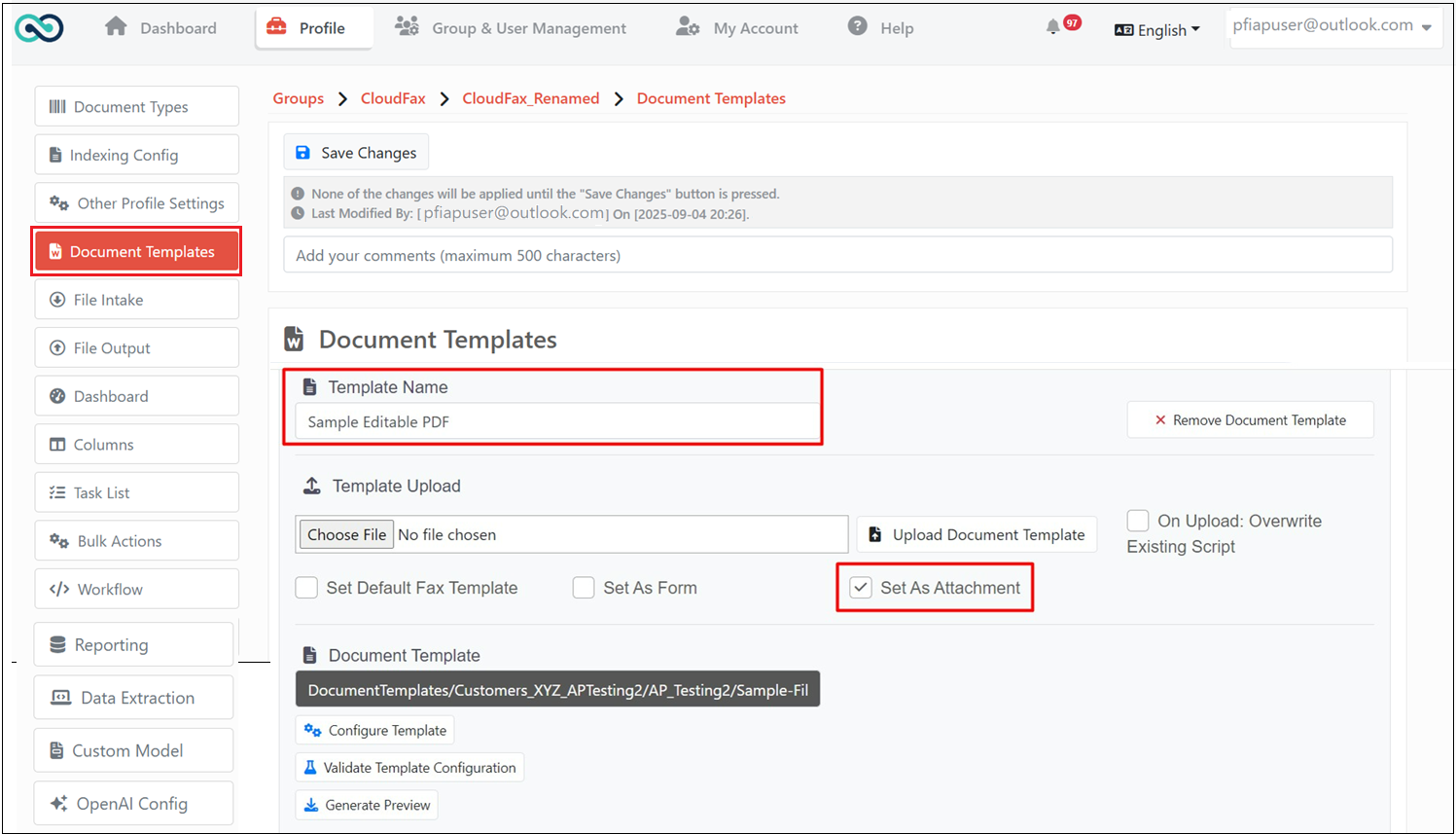
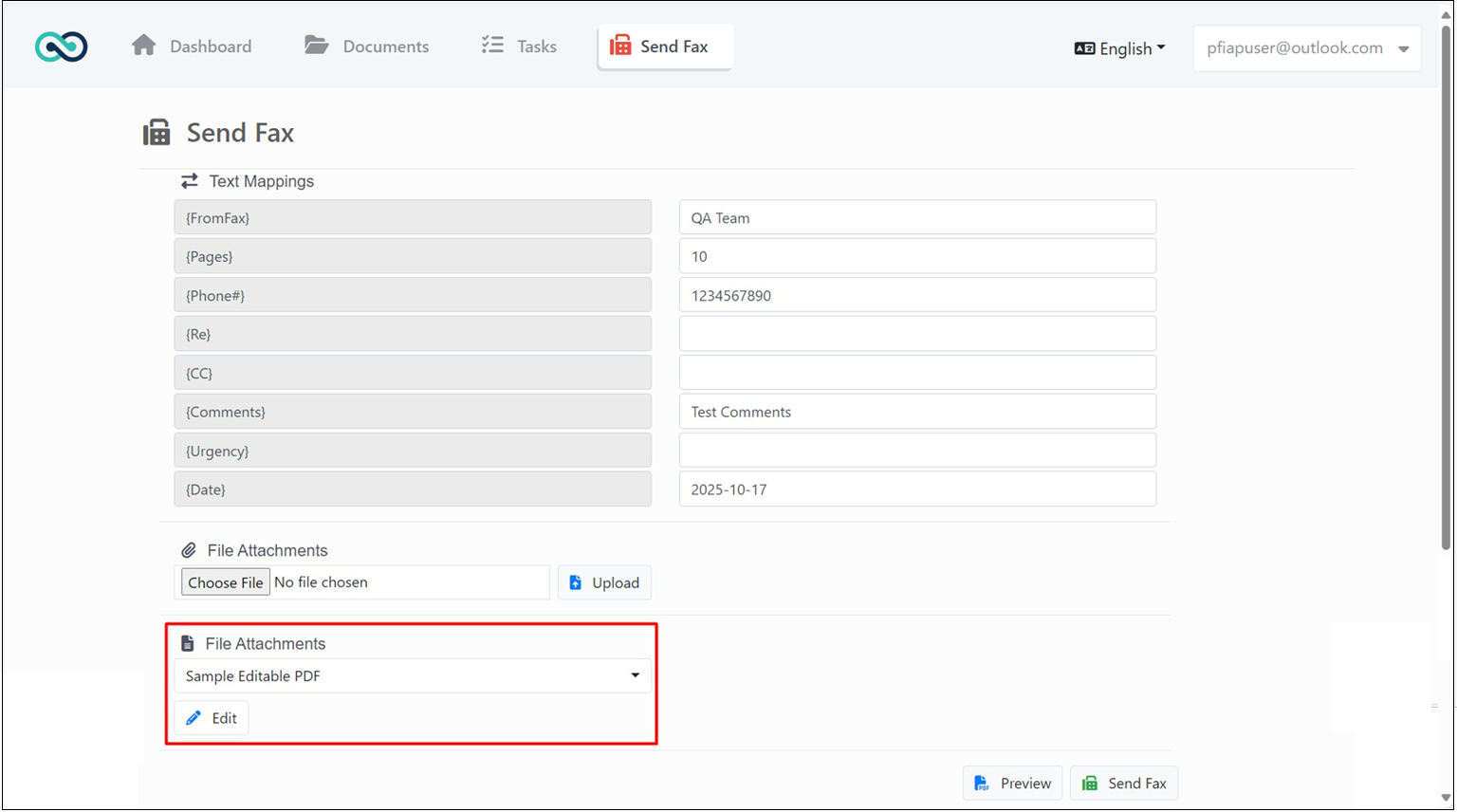
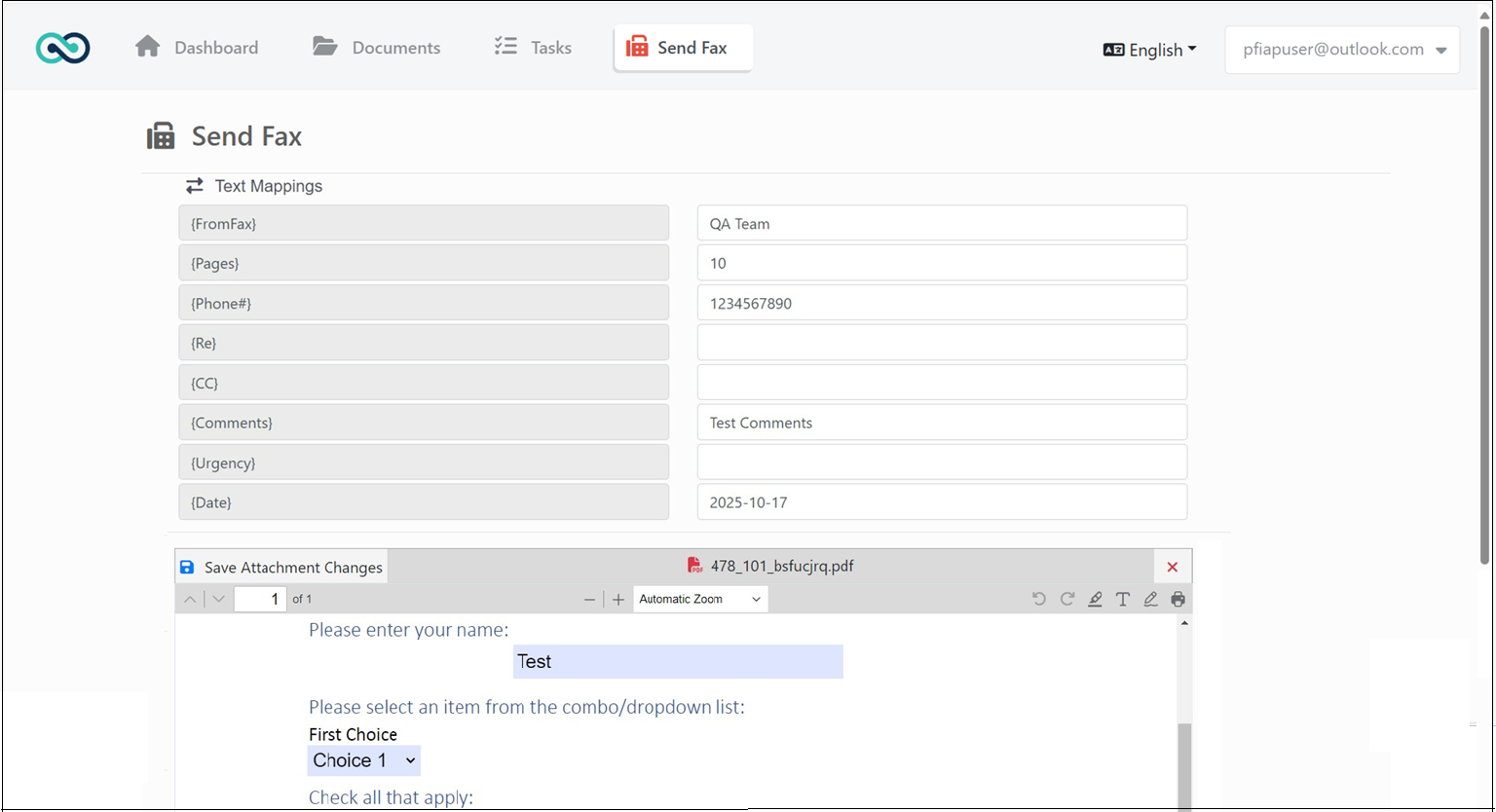
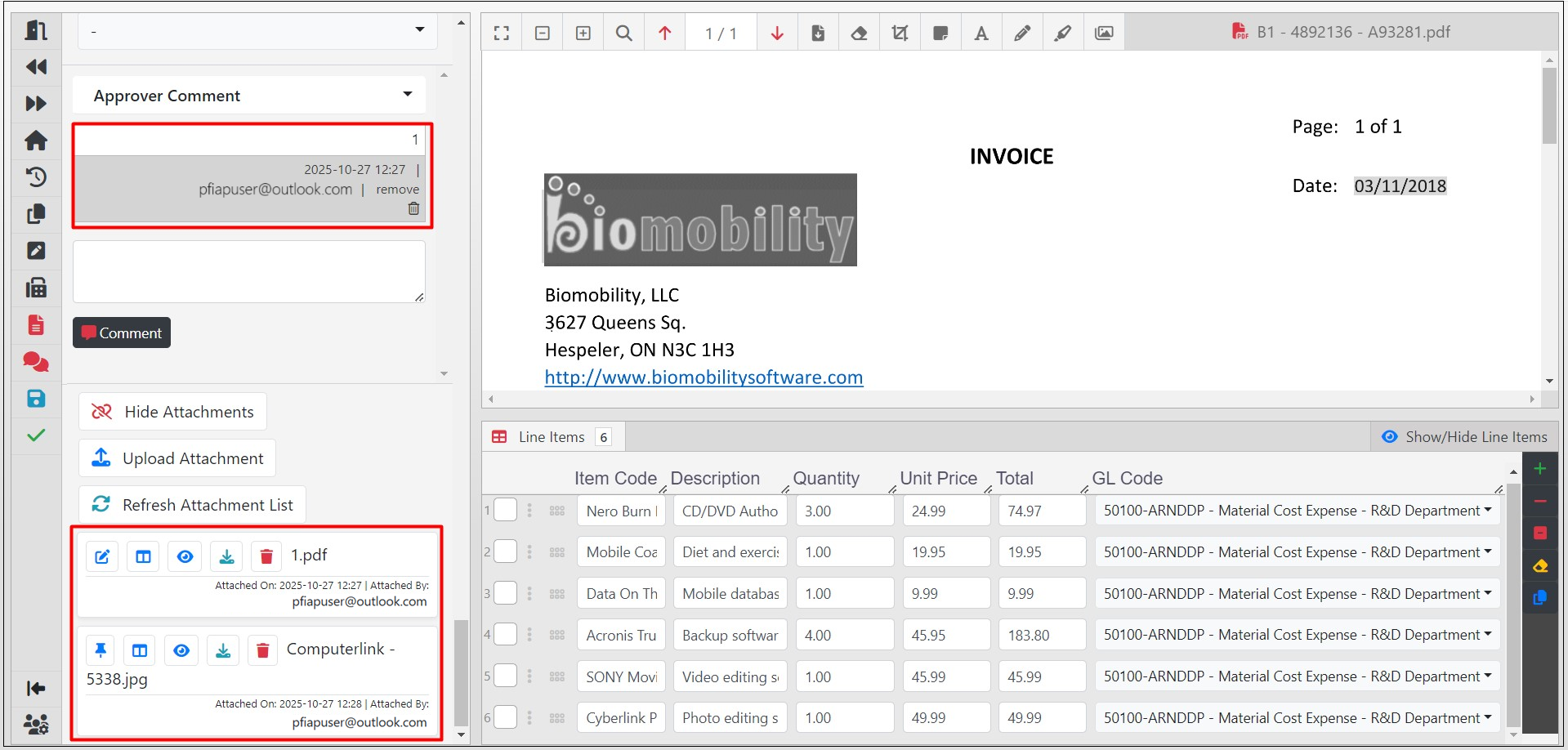
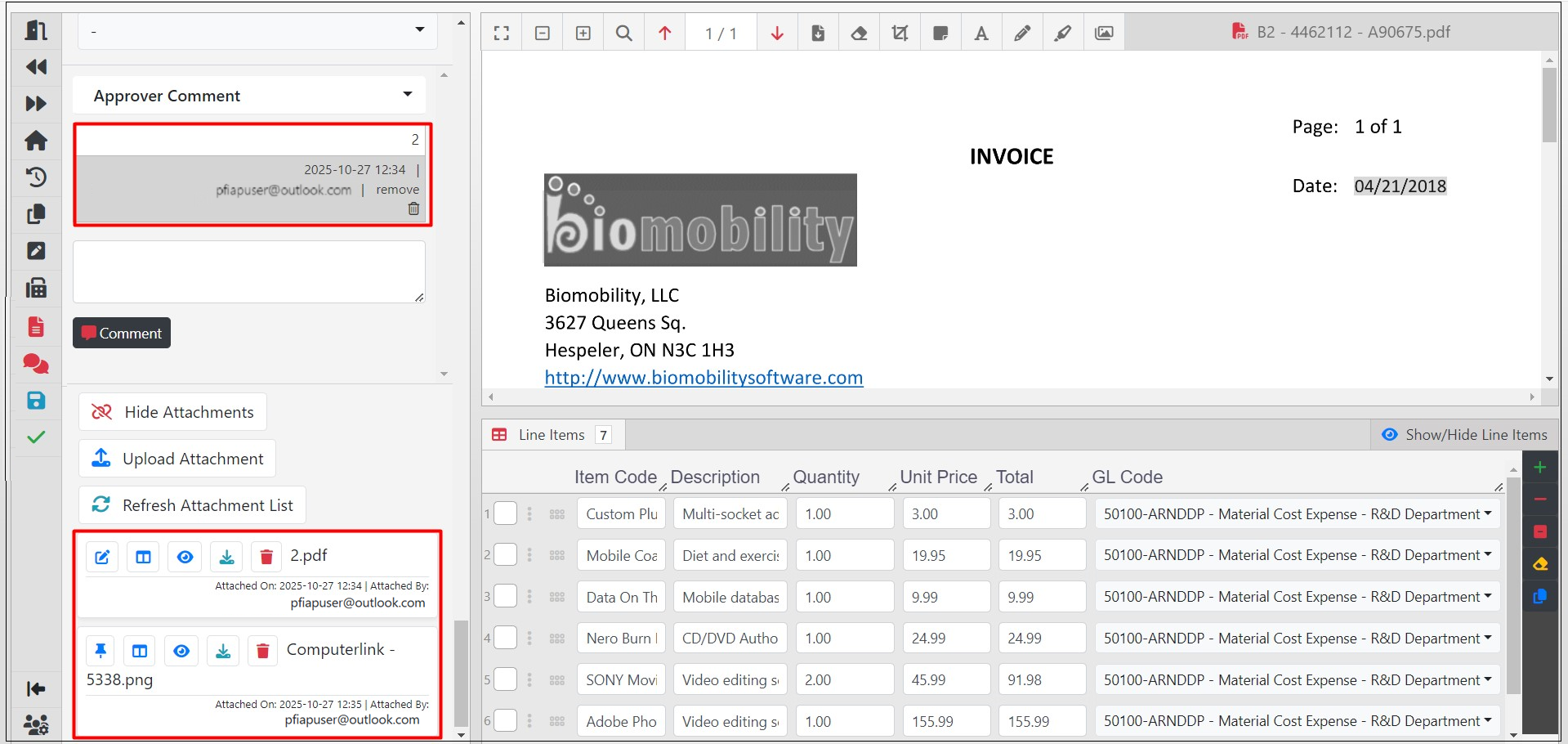
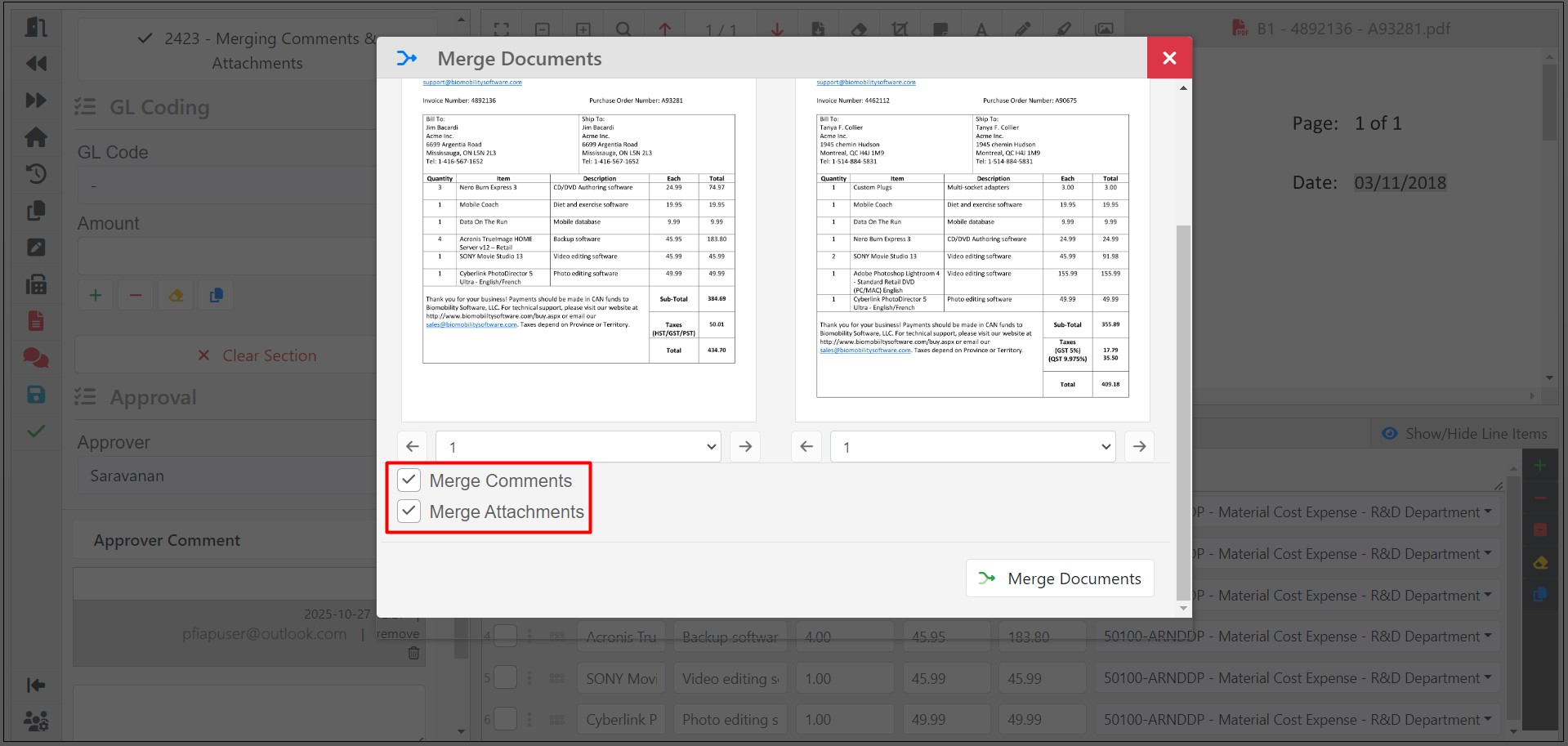
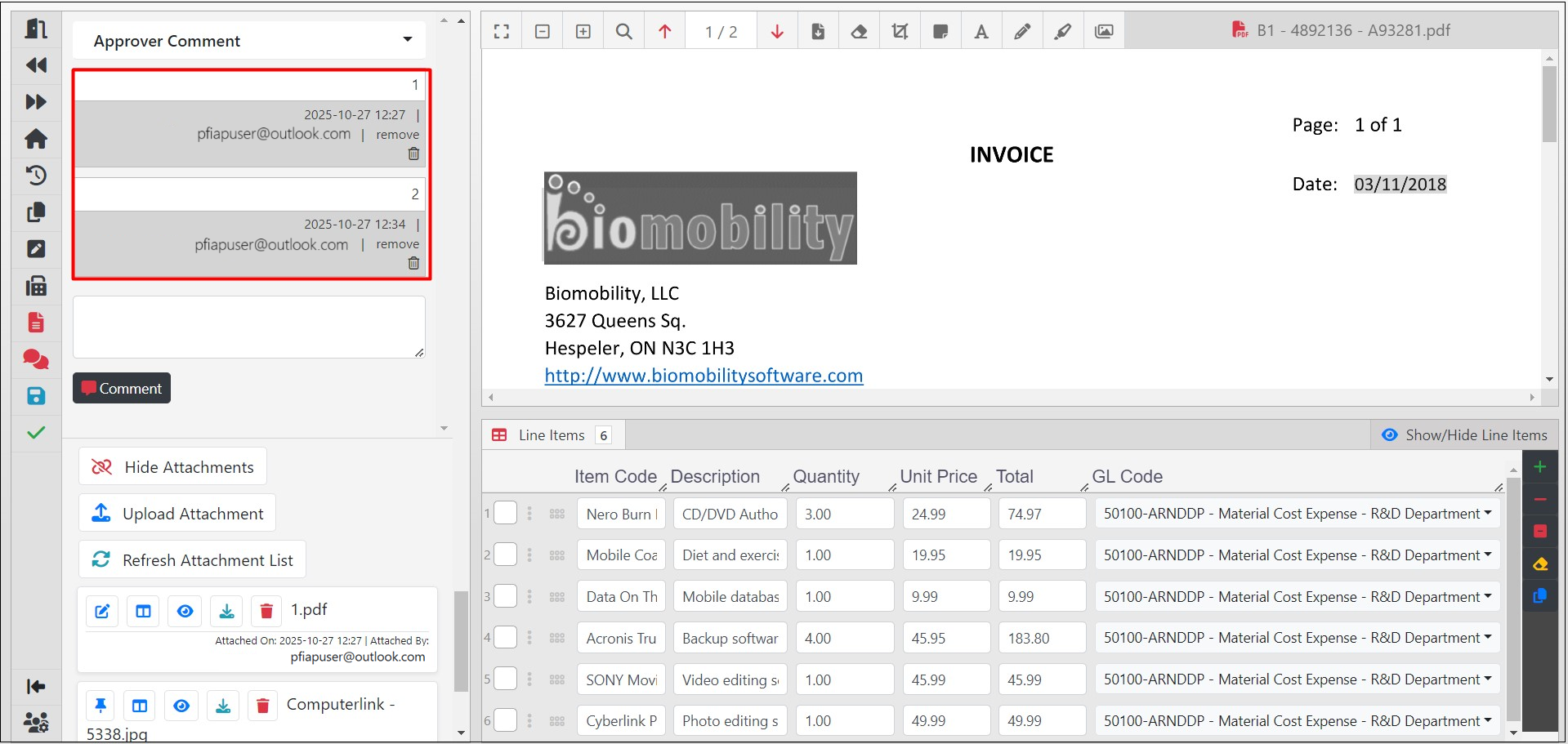
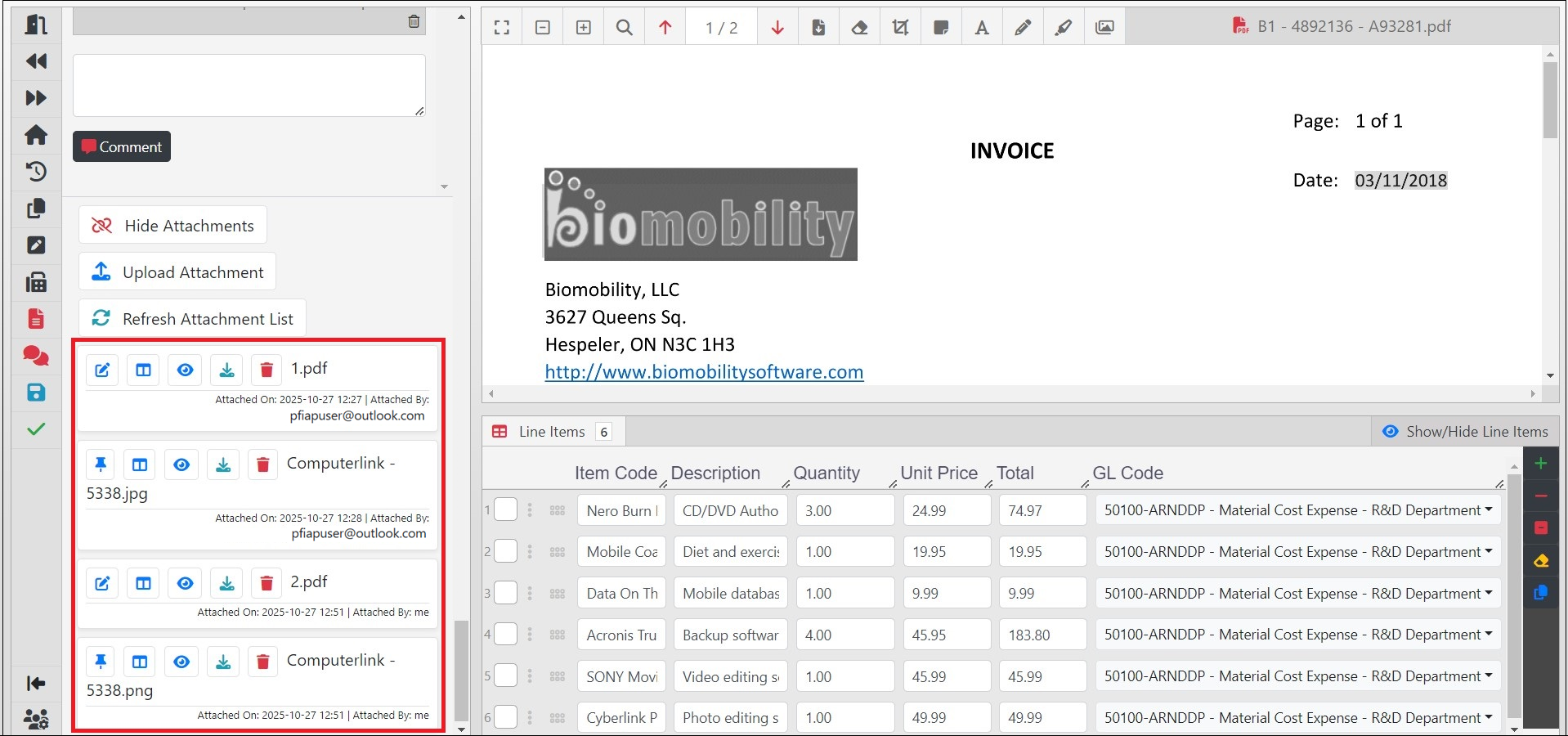
The comments and attachments in the secondary document are merged with those of the current document when the Merge Comments and Merge Attachments options are enabled in the Merge Documents popup. Please note that the secondary document will be deleted after merging.